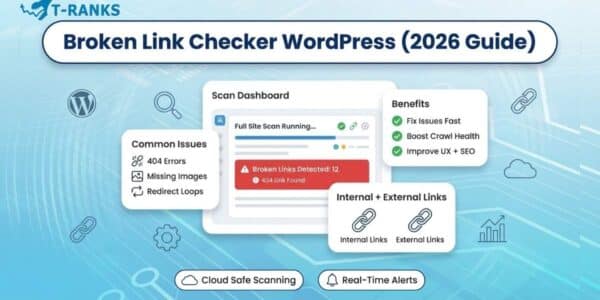
Broken links quietly damage your WordPress site. They frustrate visitors, waste your crawl budget, and weaken SEO performance. This is why using a reliable Broken Link Checker WordPress plugin is essential for keeping your site clean and trustworthy.
As your website grows, links break naturally ,deleted pages, changed URLs, missing images, and external sites that move their content. Without automated scanning, most of these issues stay hidden and continue harming your rankings.
The good news is that modern link checker plugins can scan your entire site automatically, detect errors instantly, and let you fix them from a single dashboard.
In this guide, you’ll discover the 10 best Broken Link Checker plugins for WordPress, including tools with deep site scanning, cloud-based performance protection, redirect management, and fast bulk fixing. Whether you manage a blog, online store, or client site, this list will help you choose the safest and most effective option for keeping your links healthy and your SEO strong.
What Is a Broken Link Checker Plugin
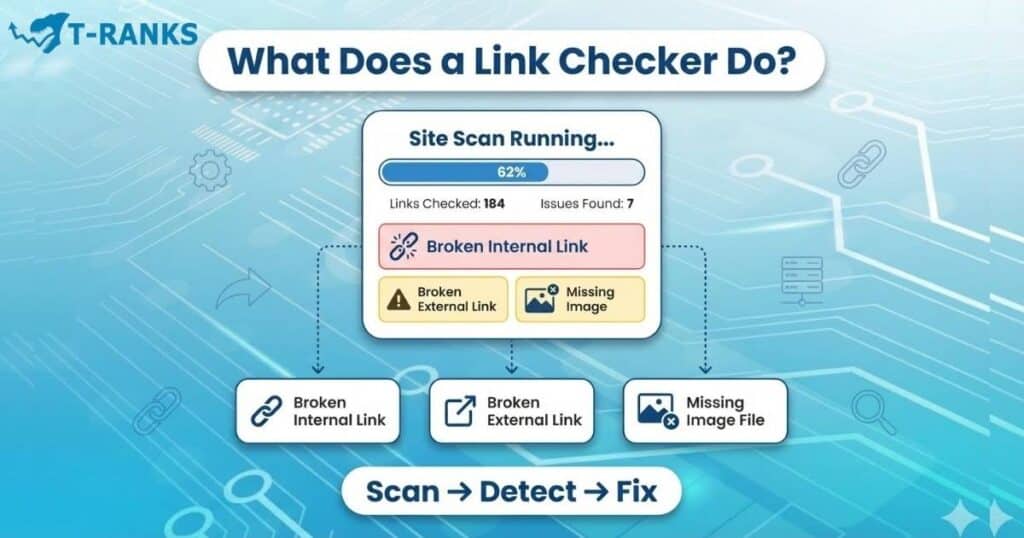
Before understanding what a Broken Link Checker plugin does, it’s important to clearly define what a broken link actually is—because this is where most WordPress users get confused.
What Is a Broken Link?
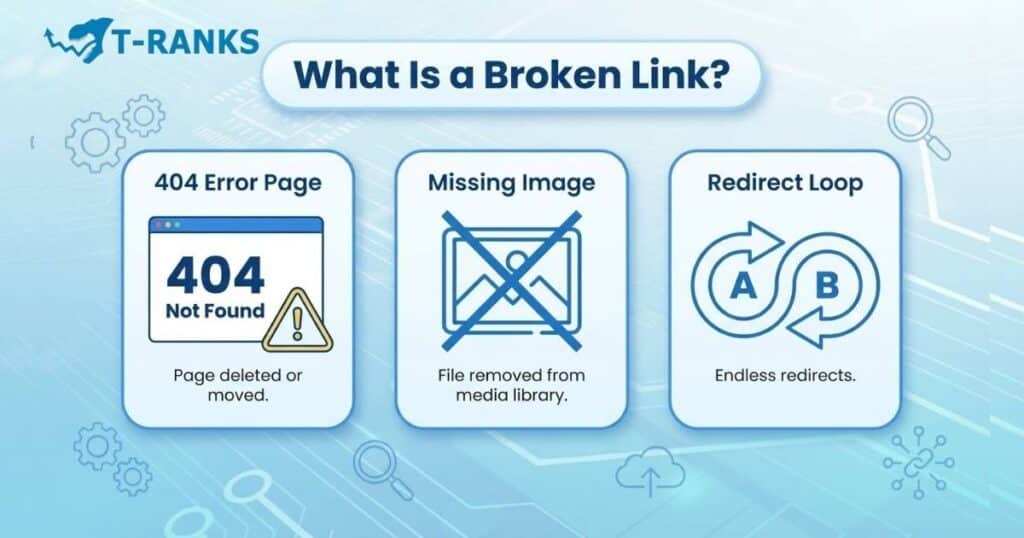
A broken link (also called a dead link, 404 link, or link rot) is simply a URL that no longer takes you to the page, file, or resource it was originally meant to show. Instead of loading real content, it:
- returns a 404 Page Not Found error
- displays a missing image
- gets stuck in a redirect loop
- loads a timed-out or unreachable page
- points to a deleted product or outdated resource
These issues create a poor user experience and gradually reduce your site’s SEO health, because search engines treat broken links as signs of poor site maintenance.
Think of it like this. You click a link expecting to read an article or view a product, but instead you get an error page, a blank image, or a redirect that never finishes. That’s a broken link in its simplest form.
Broken links appear naturally over time. They can happen when you update content, change a URL, delete media files, or when an external website changes its pages. Link rot also builds up as your site gets older. Without automated monitoring, most website owners never notice these broken links.
What Is a Broken Link Checker Plugin?
Now that you understand what a broken link is, here’s the clear definition.
A Broken Link Checker WordPress plugin is a tool that automatically scans your entire WordPress site to detect URLs that no longer work.
In this guide, the term broken link we used refers to both internal links and external links, because these plugins check everything , your own URLs and the backlinks you’ve added to other websites.
A good plugin identifies:
• broken internal links
• broken external links
• missing images
• redirect loops
• URLs that fail to load or return soft 404s
The plugin then alerts you instantly and allows you to fix, edit, update, or remove the broken link from a central dashboard, without manually checking each page.
In simple words, a Broken Link Checker plugin monitors your website’s link health. It scans deep inside:
- posts & pages
- menus & widgets
- comments & user-generated content
- shortcodes & blocks
- WooCommerce product descriptions
- custom fields & advanced custom data
These are the areas where broken links hide most frequently.
This matters because WordPress does not track link health on its own, and large websites,especially blogs, affiliate sites, eCommerce stores, and directory sites , accumulate broken links over time. Old URLs change, product pages disappear, external websites get updated, and images get moved or deleted.
Manually checking hundreds of pages for broken URLs is nearly impossible.
A Broken Link Checker plugin solves this by:
- running automatic scans
- identifying dead links & link rot
- generating detailed link reports
- sending email or dashboard alerts
- helping you fix issues instantly
- preventing SEO loss
- improving user experience
- protecting your website’s authority
In short, it’s a must-have maintenance tool for any WordPress site that publishes content regularly.
Why Broken Links Hurt WordPress SEO and UX
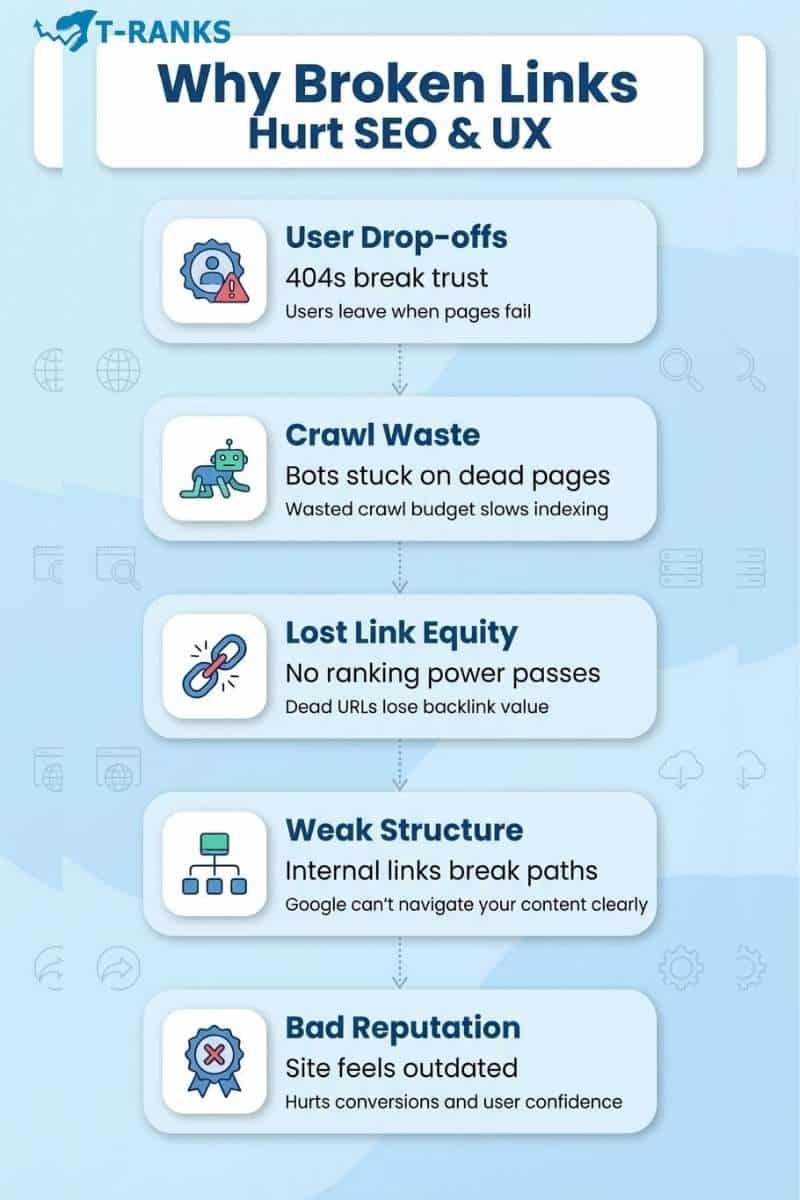
Broken links hurt WordPress SEO and UX because they interrupt the user journey, weaken your site structure, and reduce Google’s ability to crawl and trust your pages. Even a few dead links send negative quality signals to search engines and visitors.
User Experience Impact
When a user clicks a link expecting helpful information but lands on a 404 page, the experience breaks instantly. Most people leave immediately.
This increases bounce rate and tells Google the page did not satisfy search intent. Over time, this damages user trust and reduces conversions.
SEO Crawl Impact
Google’s crawlers waste time on URLs that lead nowhere. This creates crawl waste and lowers crawl efficiency.
When Google spends time on broken pages, it discovers your new or updated content more slowly. Soft 404s make the problem worse because they look valid but offer no value, confusing both users and algorithms.
Loss of Link Equity
Links are supposed to transfer authority (link equity) between pages.
A broken URL loses all the equity pointing to it.
If strong external backlinks target a page that no longer exists, the ranking power behind those links disappears completely.
Internal Linking Decay
Broken internal links weaken your WordPress site architecture.
Google struggles to understand your content hierarchy, which can create orphaned pages with no internal pathways.
This hurts topical relevance, indexing, and overall rankings.
Reputation Damage
A site filled with broken links feels outdated and poorly maintained.
Visitors lose confidence fast, which impacts sales, sign-ups, and repeat visits.
Simple Example
If your homepage links to a product that was deleted, every visitor who clicks that link hits an error. At the same time, Google wastes crawl budget on a page that should not exist.
A Broken Link Checker WordPress plugin solves all these issues by detecting broken URLs early, preventing link rot, and keeping your site clean, trusted, and search-friendly.
Key Features of a Good Broken Link Checker Plugin
A good Broken Link Checker WordPress plugin must do more than simply detect errors. It should scan deeply, protect site performance, identify all types of broken assets, and make fixing issues fast and simple. The right plugin keeps your WordPress site clean, stable, and search-friendly without slowing down your hosting environment.
Deep Scan Coverage Across Your Entire WordPress Site
A strong plugin must scan every location where links can hide. This includes:
- posts and pages
- Gutenberg blocks and shortcodes
- menus and widgets
- comments and custom fields
- WooCommerce product data
- internal and external URLs
It should detect broken internal links, missing images, 404 pages, redirect loops, soft 404 errors, and unreachable external sites. Deep coverage is the foundation of an effective broken link checker.
Cloud-Based Scanning to Protect Performance
Old, server-based scanners slow down your WordPress dashboard because they run heavy tasks on your hosting.
A modern plugin uses cloud-based scanning, which shifts the workload to external servers. This prevents lag, keeps your dashboard light, and ensures accurate scans even for large websites, ecommerce stores, and sites on shared hosting.
Fast Fixing Tools With Bulk Actions
A good plugin makes fixing broken links quick and effortless. You should be able to:
- edit URLs
- remove problematic links
- update redirects
All from a single dashboard.
Bulk actions are especially helpful after migrations, theme changes, or URL structure updates where dozens of links may break at once.
Image and Media Scanning for Complete Detection
Broken links aren’t limited to text URLs. A reliable plugin should also detect issues in:
- embedded images
- PDF downloads
- video embeds
- audio files
- product gallery images
This ensures your website loads cleanly and maintains a professional, trustworthy appearance.
Smart Monitoring, Scheduling, and Scan Controls
The best broken link checker plugins include:
- scheduled auto-scans
- instant notifications
- exclusion rules (specific posts, URLs, categories)
- scan frequency settings
These controls allow you to customize how the plugin monitors your site, giving you full flexibility without overwhelming your dashboard.
Trusted Developers and Regular Updates
A plugin is only as reliable as the team behind it. Look for:
- frequent WordPress compatibility updates
- active support
- clean coding practices
- ongoing security maintenance
A plugin that isn’t updated regularly can misreport errors or cause performance problems over time.
Integrated Redirect Management
Many top-tier plugins now include built-in redirect tools or seamless integration with redirect managers. This lets you fix broken links instantly while preserving SEO value and link equity. Having redirects within the same tool saves time and reduces the risk of misconfigured URLs.
Final Note:
These features together define what makes a good Broken Link Checker WordPress plugin. When a tool offers deep scanning, cloud performance, smart automation, and fast fixing tools, it becomes essential for keeping your site healthy, optimized, and free from link-related SEO issues.
Top 10 Best Broken Link Checker Plugins for WordPress (2026)
Choosing the best Broken Link Checker WordPress plugin can be difficult because each tool offers different levels of scanning depth, performance safety, and speed. At T-RANKS, our team tested more than 25 plugins. We evaluated each one based on cloud-based scanning ability, internal and external link coverage, redirect handling, media detection, fixing workflow, and overall impact on WordPress performance.
Below are the 10 best broken link checker plugins for WordPress, each reviewed with equal detail to help you decide which one fits your site size, hosting, and maintenance style.
1. Broken Link Checker by WPMU DEV
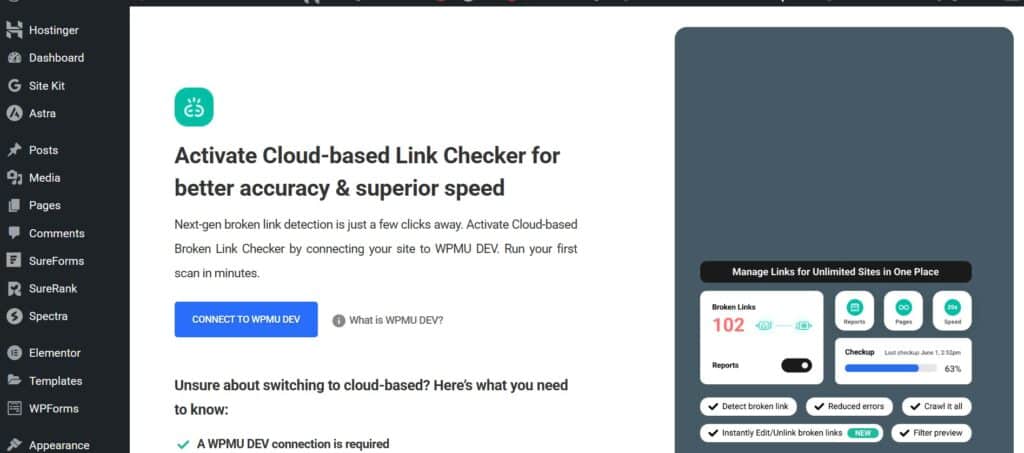
We found WPMU DEV’s Broken Link Checker to be the most reliable and feature-rich option among all broken link checker plugins available in the official WordPress Plugin Directory.
Broken Link Checker by WPMU DEV is one of the most complete scanning tools in the WordPress ecosystem. It checks posts, pages, menus, blocks, comments, custom fields, and WooCommerce product data. It detects broken internal links, external links, missing images, 404 errors, 410 errors, redirect loops, and embedded media issues with high accuracy.
Its cloud-based scanning engine ensures zero load on your server, making it ideal for large websites. You can fix URLs directly inside the dashboard using inline edits, bulk actions, and redirect tools. Everything is streamlined to help you clean link rot quickly without touching individual pages.
Why it works well
- Full site crawling with deep WordPress coverage
- Cloud-based scans to protect hosting performance
- Inline dashboard editing for fast fixes
- Bulk tools for repairing dozens of broken links at once
- Detects missing images, redirect chains, and media file issues
- Accurate reporting and real-time alerts
Best For:
Medium to large websites, agencies, ecommerce stores, and content-heavy sites that need fast cloud scanning without slowing down the WordPress backend.
2. Broken Link Checker by AIOSEO
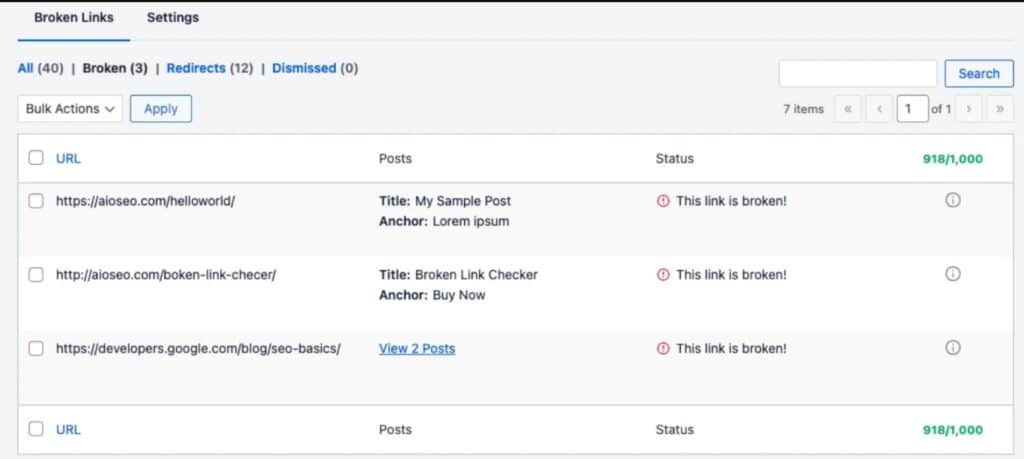
Broken Link Checker by AIOSEO uses fully cloud based scanning to avoid any strain on your hosting server. It handles internal link monitoring, external URL validation, redirect loop detection, and soft error checks while keeping your WordPress site fast. The plugin delivers clear link reports, weekly automated scans, and one click fixes that simplify link rot prevention. Because all scanning runs on AIOSEO’s servers, it remains ideal for performance sensitive sites.
Core advantages
• Cloud based scanning ensures zero slowdown during full scans
• Automated link monitoring with weekly checks
• Clean reporting ideal for quick audits and snippet style summaries
• Easy link fixing and unlinking directly from the dashboard
• Integrates smoothly with AIOSEO’s redirect manager
Best For: shared hosting, performance sensitive sites, and AIOSEO users.
3. SEOPress 404 Monitoring and Fixes
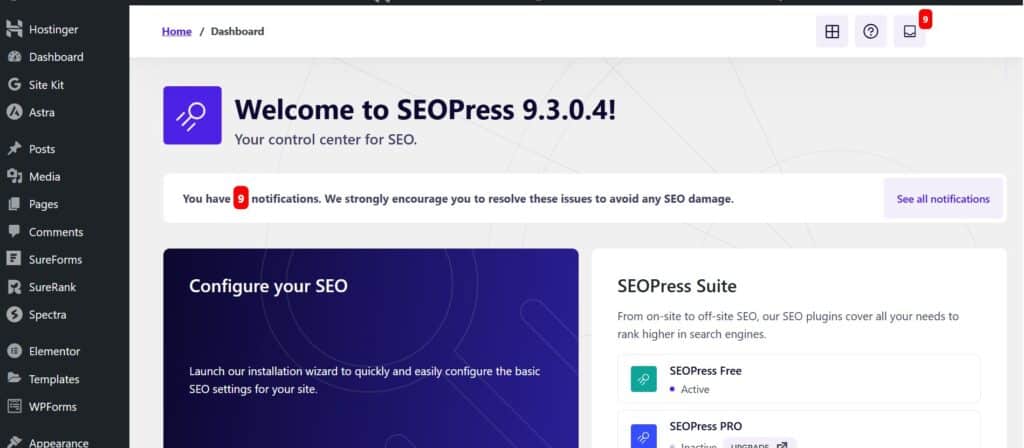
SEOPress includes built in 404 monitoring and redirect tools as part of its full SEO suite, giving you an all in one link maintenance workflow. It tracks each missing page hit, logs activity from visitors and bots, and lets you create redirects for deleted or moved URLs. The plugin also provides internal link analysis and media file checking to strengthen structure and prevent link rot across your WordPress site.
Standout features
• Tracks real time 404 hits from users and search engines
• Built in redirect module supporting 301, 302, and 307 rules
• Internal linking insights to reinforce site structure
• Handles frequent slug changes and content updates
• Works as both an SEO suite and broken link management tool
Best For: users wanting all in one SEO and link maintenance in a single plugin.
4. Link Whisper Free Internal Link Checker
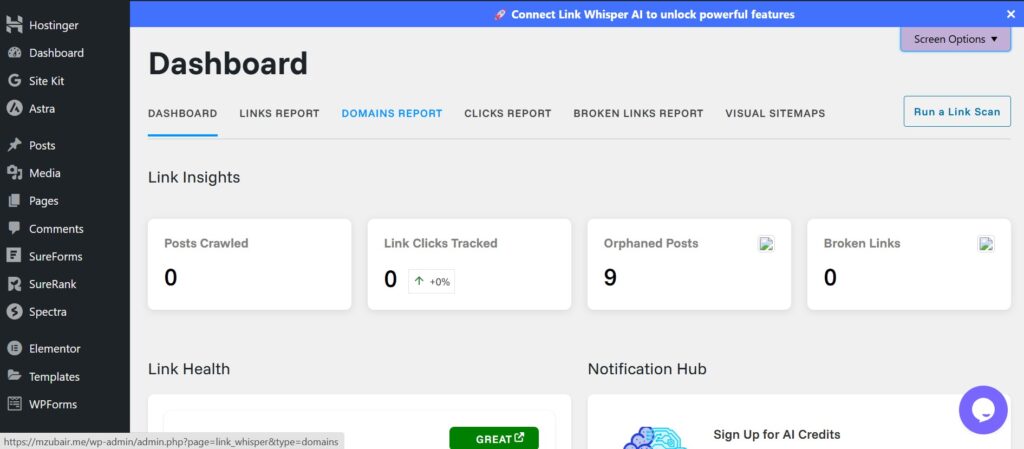
Link Whisper focuses on internal link monitoring and content structure improvement, making it ideal for sites with large article libraries. It detects broken internal URLs, highlights orphan pages, and suggests new internal links to strengthen topical relevance. The premium version adds external URL validation, redirect loop detection, and full broken link scanning for a broader link rot prevention workflow.
Why users prefer it
• Detects broken internal links across all published content
• Identifies orphan pages with no incoming links
• Suggests new internal links based on topic relevance
• Helps distribute link equity throughout your content library
• Premium version adds full broken link scanning and inline fixes
Best For: blogs, editorial sites, and content heavy websites improving internal linking.
5. WP Meta SEO 404 Monitoring and Redirects
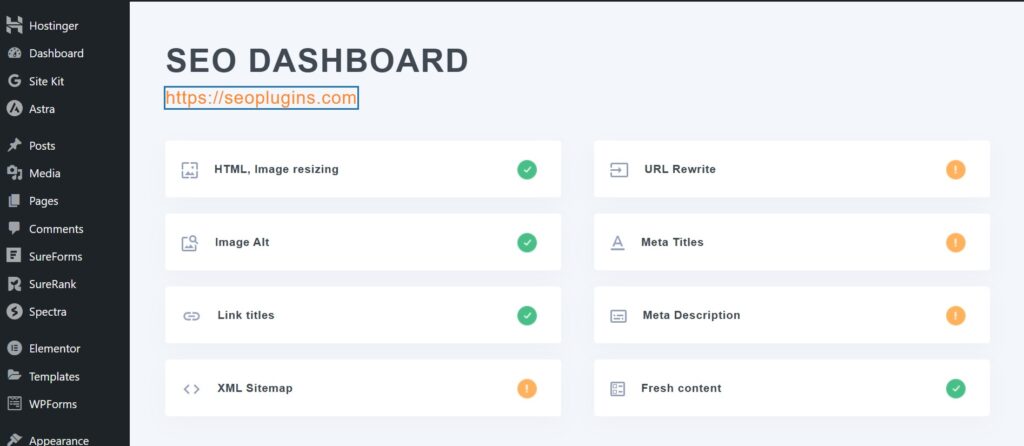
WP Meta SEO Plugins provides advanced 404 tracking, broken media detection, and bulk redirect tools built for large WordPress environments. It scans for missing media files, outdated internal URLs, and product pages, then lets you fix them through quick edits or mass redirects. With metadata optimization included, it works as a hybrid solution for SEO, link rot prevention, and media file checking.
Key strengths
• Detects 404 pages and missing media files across the entire site
• Bulk redirect options for repairing large groups of URLs
• Strong performance for WooCommerce catalogs and image heavy sites
• Integrated metadata tools provide added SEO value
• Ideal for sites with large product or media libraries
Best For: ecommerce stores, product catalogs, and media rich WordPress installations.
6. 301 Redirects Plugin
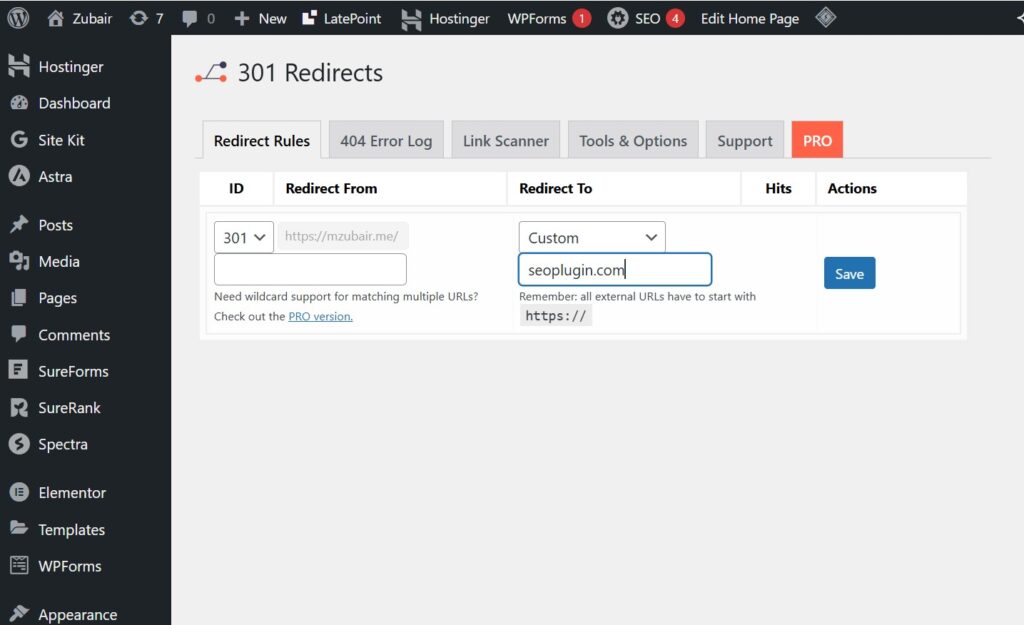
301 Redirects is a simple, efficient redirect manager designed to fix broken URLs after they are found by another tool. It doesn’t perform internal link monitoring or external URL validation, but it works perfectly alongside scanners like Search Console or Screaming Frog. With a clean interface and beginner-friendly controls, it helps you repair URL errors, prevent link rot, and preserve link equity without adding server load.
What it does best
• Easy creation of 301, 302, and 307 redirects
• Beginner friendly workflow ideal for small sites
• Zero scanning load keeps your server performing fast
• Works smoothly with external link detection tools
• Helps maintain SEO value by properly redirecting broken pages
Best For: beginners and small sites needing simple redirect management.
7. Redirection Plugin
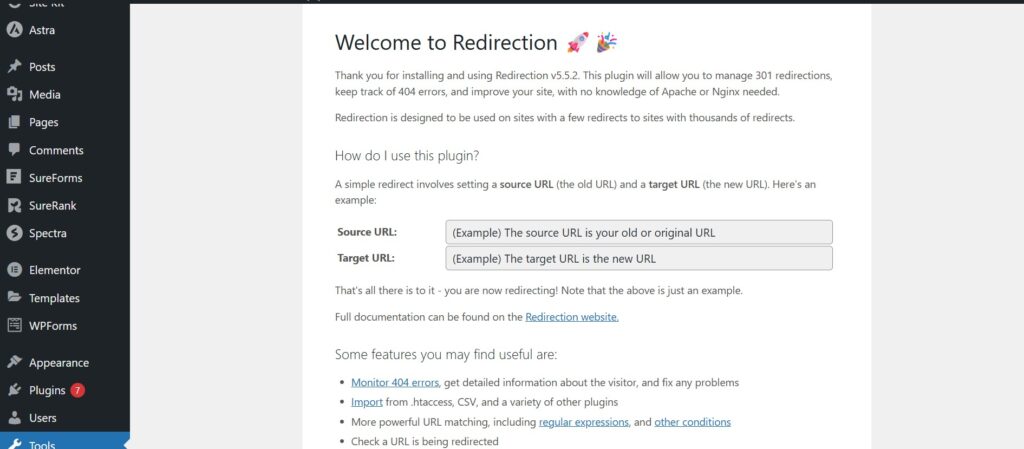
Redirection remains the most widely used redirect manager in WordPress because of its power, stability, and long term reliability. It tracks 404 errors in real time, logs redirect activity, and supports conditional rules and regex patterns for complex URL handling. This makes it ideal for redirect loop detection, migration cleanup, and large sites needing full control over URL behavior.
Why it stands out
• Tracks 404 errors in real time with detailed visit logs
• Supports regex rules and conditional redirects for advanced workflows
• Provides full redirect hit tracking with built in analytics
• Excellent for large editorial changes or major URL migrations
• Backed by long term support and a trusted development history
Best For: large editorial sites, news websites, and sites undergoing structural updates.
8. 404 to 301 Plugin
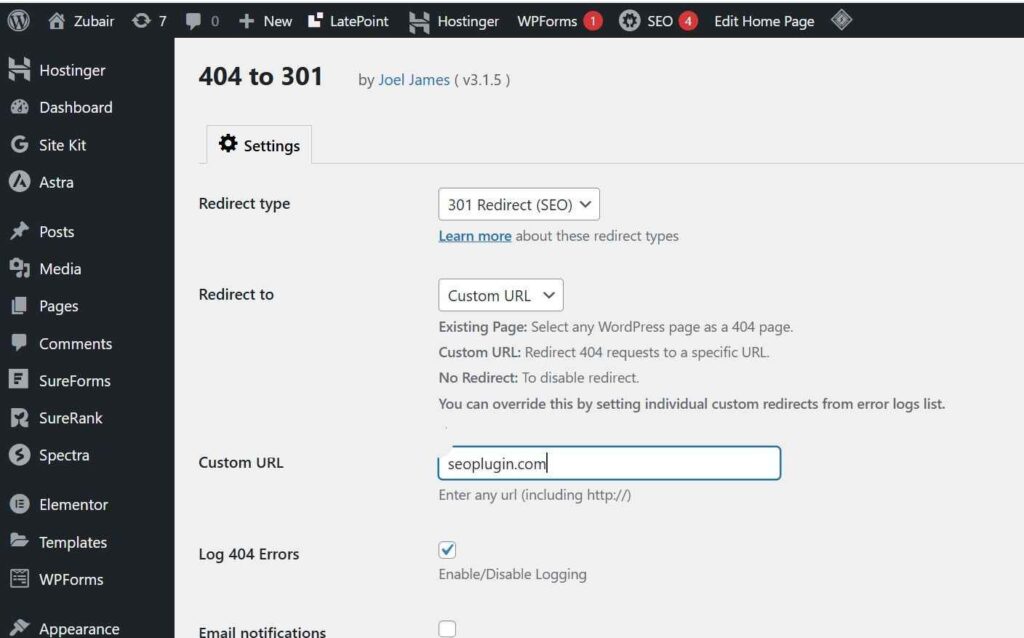
404 to 301 is a lightweight plugin that automatically redirects missing pages to a destination you choose. It logs every 404 hit for later review and provides basic redirect loop detection without any manual setup. Its simple configuration makes it ideal for non technical users who want automatic error handling, link rot prevention, and minimal server usage.
Core advantages
• Auto redirects missing pages instantly with no manual configuration
• Logs 404 hits for later troubleshooting
• Lightweight code with very low server impact
• Prevents users from landing on error pages
• Great for beginners wanting simple redirect coverage
Best For: non technical users who want automatic redirect handling.
9. Broken Link Notifier
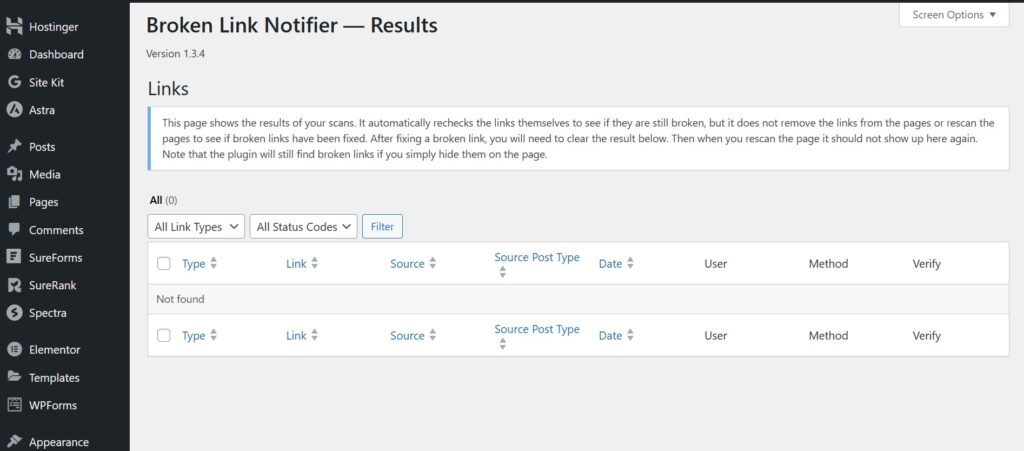
Broken Link Notifier sends email alerts whenever a broken link is accessed on your site. Instead of running full scans, it checks URLs only when a visitor or bot triggers them, which keeps it extremely lightweight. This approach is ideal for smaller sites that want quick detection of new issues without internal link monitoring or heavy crawling.
Why it’s effective
• Alerts you immediately when a broken link is triggered
• Extremely lightweight with no full site scanning
• Simple setup suited for small websites
• Helps catch issues without scheduling scans
• Useful for low maintenance or slow changing sites
Best For: small or slow changing websites needing alert based detection.
10. Check for Broken Links Plugin
Check for Broken Links provides a simple scanning system for internal and external URLs, giving you a basic link health overview directly in your WordPress dashboard. It’s beginner friendly, easy to configure, and works well for small sites that need routine link checks without advanced features such as redirect loop detection or cloud based scanning.
Key features
• Simple scanning process ideal for new users
• Detects internal and external broken links quickly
• Clean, minimal interface for easy navigation
• Suitable for small site owners with low maintenance needs
• No complex configuration or technical setup required
Best For: small websites and beginners wanting straightforward link detection.
In Summary:
The Best Broken Link Checker Plugins for WordPress help you keep your site healthy by finding and fixing dead links before they harm SEO or user experience. In our T-RANKS evaluation, we compared plugins based on scan depth, accuracy, performance impact, redirect support, and bulk fixing. These tools fall into three groups—full scanners, cloud scanners, and redirect managers—so you can choose the right option for your hosting, site size, and maintenance workflow.
Comparison Table of All Plugins
The table below compares the Best Broken Link Checker Plugins for WordPress, helping you quickly understand how each tool handles scanning, image detection, redirects, and server performance load. It also highlights the biggest difference that affects real-world usage: cloud scanners (green) produce zero strain, while on-site scanners (yellow) depend heavily on your hosting power. The red–yellow–green scoring makes it easy to pick the safest plugin for your site, whether you’re running a small blog or a high-traffic store.
| Plugin Name | Scan Type | Image Detection | Redirects | Performance Load | Notes |
| Broken Link Checker (WPMU DEV) | Cloud & Local | Yes | Yes | Green (cloud = zero load) | Best for medium to large sites |
| Broken Link Checker by AIOSEO | Cloud (SaaS) | Yes | Yes (via Redirect Manager) | Green (zero server impact) | Ideal for performance-sensitive hosting |
| SEOPress – 404 Monitoring | Local | Yes | Yes | Yellow (moderate) | Great for all-in-one SEO setups |
| Link Whisper Free | Local | Limited | No | Green (low) | Ideal for blogs focused on internal links |
| WP Meta SEO – 404 Monitoring | Local | Yes | Yes | Yellow (moderate) | Excellent for WooCommerce and large catalogs |
| 301 Redirects Plugin | Redirect Manager | No | Yes | Green (very low) | Simple and beginner-friendly |
| Redirection Plugin | Redirect Manager | No | Yes | Green (very low) | Most popular and most powerful redirect tool |
| 404 to 301 Plugin | Auto-Redirect | No | Yes (auto 301) | Green (very low) | Easiest automatic redirect solution |
| Broken Link Notifier | Passive Monitor | Yes | No | Green (very low) | Alerts you when a broken link is accessed |
| Check for Broken Links Plugin | Simple Scan | Yes | No | Green (low) | Best for beginners and very small sites |
Legend
Green: Minimal or zero server load
Yellow: Moderate load, depends on hosting strength
How to Use This Table
Scan type shows whether the plugin performs full deep scans, cloud-based SaaS scanning, redirect-only management, or passive monitoring. With this breakdown, you can choose the right plugin based on your site size, hosting environment, and link-fixing needs—ensuring smooth SEO performance and a better user experience.
How to Check for Broken Links in WordPress
Checking for broken links in WordPress becomes simple once you follow a clear, structured process. A Broken Link Checker WordPress plugin handles most of the work for you, scanning your entire site, alerting you when something breaks, and giving you quick tools to fix issues before they affect SEO or user experience. Here’s how to do it the right way from start to finish.
Step 1: Install a Broken Link Checker Plugin
The easiest way to check for broken links is to install a cloud-based plugin. Cloud scanners run on external servers, which means your website stays fast even during full scans.
To install:
- Go to Plugins → Add New
- Search for Broken Link Checker (WPMU DEV) or Broken Link Checker by AIOSEO
- Click Install → Activate
Most plugins will automatically begin scanning as soon as they are activated.
Step 2: Run Your First Full Scan
After activation, your plugin needs to map your entire site. This first scan checks everything, including:
- posts and pages
- menus, widgets, and navigation links
- comments, custom fields, and shortcodes
- WooCommerce products
- images, videos, PDFs, and other media
Depending on your site size, the scan may take a few minutes or longer, but it runs quietly in the background while you continue working.
Step 3: Set Up Automatic Monitoring
Broken links appear naturally over time as content is updated or removed, so ongoing monitoring is essential. Set your scan schedule based on how often your site changes:
- Weekly for blogs and general content sites
- Daily for ecommerce stores or fast-moving news sites
- After major changes like migrations, permalink updates, or theme changes
Turn on email or dashboard alerts so you know immediately when a new broken link appears.
Step 4: Review the Results Dashboard
Once the scan is finished, open the plugin’s dashboard to see all detected issues. Each broken link will show:
- the faulty URL
- where it appears on your site
- the anchor text used
- the error code (404, 410, redirect loop, timeout)
- whether it’s internal or external
Start with internal 404s, since they have the biggest impact on SEO and user experience. External links can be handled afterward based on importance.
Common error codes you’ll see:
- 404 Not Found → the page no longer exists
- 410 Gone → permanently removed
- Redirect Loop → URL endlessly redirects
- Timeout → website didn’t respond
- Soft 404 → page loads but contains no real content
Understanding these helps you decide whether to fix, redirect, or remove the link.
Step 5: Fix Links Directly Inside the Plugin
A good Broken Link Checker WordPress plugin lets you repair everything without opening each page manually.
You can:
- Edit URL to correct the link
- Unlink if the reference isn’t needed anymore
- Add a redirect to send users to a relevant page
- Bulk fix multiple links at once when the same error appears across many posts
After making changes, click Recheck to confirm the link is now working.
Step 6: Handle Broken Images and Media
Broken images are just as harmful as broken URLs. They create empty spaces, slow down pages, and weaken SEO signals.
To fix broken images:
- Filter your results to show media errors only
- Check if the file is still inside your Media Library
- If missing, re-upload the image
- If moved, update the image URL through the plugin dashboard
- Re-run a quick scan to verify the fix
This step is especially important for WooCommerce stores, galleries, portfolios, and blogs that rely heavily on visuals.
How to Fix Broken Links in WordPress
Fixing broken links in WordPress is straightforward once you follow a clean, organized workflow. A Broken Link Checker WordPress plugin handles most tasks automatically, letting you repair links, redirect pages, restore images, or remove outdated content—all without hunting through individual posts. Below is the complete process used by professionals to keep their sites error-free.
Edit URLs Directly Inside the Plugin
Most broken links happen because a page was updated, moved, or renamed. In these cases, the simplest fix is to replace the incorrect URL with the correct one directly inside the plugin dashboard.
How to edit a broken link:
- Open your plugin’s Broken Links report.
- Locate the issue and click Edit URL.
- Paste the correct link or fix the typo.
- Save your changes and hit Recheck.
This method works best when the destination still exists, just at a new or corrected location.
Create Redirects for Deleted or Moved Pages
When content has been deleted or permanently moved, editing the URL won’t solve the problem. A 301 redirect is the correct fix—it passes SEO value to a new page and sends visitors where they need to go.
How to create a redirect:
- Install a redirect plugin such as Redirection or 301 Redirects Plugin.
- Add a new rule with:
- Source URL: the broken link
- Target URL: the updated, relevant page
- Source URL: the broken link
- Choose 301 Permanent Redirect and save.
- Test the redirect to ensure it works.
Use redirects when:
- The old page still gets traffic.
- Backlinks point to the old URL.
- You replaced outdated content with a new version.
Redirects protect SEO and prevent users from hitting dead ends.
Fix Broken Images and Media
Broken images occur when media files are deleted, renamed, or moved. They create empty spaces, slow down pages, and weaken trust—especially on product pages or tutorials.
How to fix broken images:
- Filter your plugin report to show broken images.
- Check if the file exists in your Media Library.
- If missing → re-upload the correct image.
- If moved → update the media URL using the Edit URL option.
- Rescan the page to confirm the fix.
For large sites, fixing media quickly helps maintain page speed and visual consistency across your content.
Remove or Unlink Outdated Pages
Sometimes the resource you’re linking to no longer exists anywhere—no updated version, no alternative URL. In this case, the best solution is to remove the hyperlink.
How to unlink a broken reference:
- Select the link in your plugin dashboard.
- Click Unlink to remove the clickable URL.
- Save the update—your anchor text stays, but the broken link is gone.
This option is ideal for:
- Old tools or services that shut down
- Expired promotions
- Irrelevant or outdated references
Removing unnecessary links keeps your content clean and user-friendly.
Real-World Workflow Example
Here’s what a typical broken link fixing session looks like:
- Your Broken Link Checker WordPress plugin flags 30 broken links.
- You edit 16 URLs because the pages were updated.
- You create 8 redirects for old pages that were deleted.
- You restore 5 images by re-uploading missing files.
- You unlink 1 outdated reference that has no replacement.
In less than 10 minutes, your entire site is cleaned up—no manual digging through posts required.
Other Tools to Find Broken Links (Beyond Plugins)
While WordPress plugins are perfect for routine monitoring, several powerful external tools can scan your site with greater depth and flexibility. These tools are ideal for full-site audits, cross-platform analysis, or reducing the workload on your server. Here’s a clear overview of the best options and when to use them.
1. Google Search Console
Google Search Console (GSC) is one of the most reliable ways to identify broken links because it reflects exactly what Google’s crawlers experience when indexing your site.
How it works: Googlebot scans your pages and reports errors such as 404 “Not Found” inside the Indexing → Pages section.
Best for: Understanding crawl issues from Google’s perspective and prioritizing fixes that directly impact search visibility.
Caveat: GSC only shows the errors—it doesn’t fix them. You must update links manually or create redirects inside WordPress.
2. Screaming Frog SEO Spider
Screaming Frog is a popular desktop crawler that gives a highly detailed, technical view of your website—often much deeper than plugin-based scans.
How it works: Install the software, enter your URL, and it crawls your website like a search engine, listing broken links, status codes, missing images, and more.
Best for: SEO professionals or site owners needing comprehensive, technical audits. The free version scans up to 500 URLs.
Caveat: It’s desktop-only, and the free version has crawl limits.
3. Online Broken Link Checkers (Web-Based)
Web-based link checkers offer quick, convenient scans without installing anything—useful for instant checks or small websites.
How they work: Enter your URL, and the tool crawls your site from external servers. Popular options include Dead Link Checker and W3C Link Checker.
Best for: Quick one-time scans when you don’t want to install a plugin or desktop tool.
Caveat: Free versions often limit how many pages they scan, and fixes must be done manually.
4. Enterprise SEO Platforms (Ahrefs, Semrush, Moz)
Advanced SEO platforms include robust site auditing tools that detect broken links alongside hundreds of other SEO issues.
How they work: Their crawlers scan your website for broken internal links, broken external links, redirect chains, and broken backlinks from other sites.
Best for: Agencies and marketing teams managing multiple large websites who need complete reporting and ongoing monitoring.
Caveat: These tools require paid subscriptions, but they offer far more functionality than standard link checkers.
5. Browser Extensions
Browser extensions help you check for broken links on any page you’re viewing—great for quick manual reviews.
How they work: Extensions like Check My Links or LinkMiner highlight working and broken links directly on the page.
Best for: Spot-checking individual pages or analyzing competitor sites during link-building research.
Caveat: They only scan one page at a time and don’t provide full-site coverage.
Common Causes of Broken Links on WordPress
Broken links on WordPress usually appear when your site changes in ways that disrupt URL paths or when external content no longer exists. These are the most common scenarios that break links across blogs, stores, and business sites.
Migrations and Permalink Updates
Site migrations — such as moving to a new domain, switching hosting, or updating permalink structures — often create broken links when old URLs don’t match the new format.
Changing URL styles, updating category bases, or switching from HTTP to HTTPS can leave many internal and external links dead unless proper 301 redirects are set up during the process.
Deleted Products or Posts
Whenever posts, pages, or WooCommerce products are deleted without redirects, every link pointing to them instantly becomes a 404.
This problem is especially common on large content libraries or ecommerce stores where older items get removed frequently and broken links accumulate unnoticed.
External Site Changes
Outbound links break all the time because external websites constantly update or remove content.
If the site you linked to deletes a page, changes a URL, moves content behind a paywall, or lets a domain expire, your link returns an error — even though nothing changed on your end. Regular external link audits are essential.
Theme and Plugin Updates
Themes and plugins sometimes modify how URLs are generated or displayed.
Updates can break shortcodes, change custom post type URLs, or alter media paths. Conflicts or deprecated functions may also cause links to stop working, especially after major updates.
Other Frequent Causes
Other common reasons include simple URL typos, incorrect copy-and-paste formatting, database search/replace errors during migrations, and corrupted .htaccess rules that alter link behavior.
How Often Should You Scan for Broken Links?
How often you scan your WordPress site for broken links depends on the size of your website and how frequently you update content. There’s no universal “perfect schedule,” but following a consistent routine is one of the simplest ways to maintain a clean, error-free site.
General Recommendations
Small Websites (Fewer than 50 pages/posts)
Frequency: Monthly
Smaller sites rarely add new content or links, so a monthly scan is usually enough to catch occasional link rot or minor URL mistakes without wasting time or resources.
Medium Websites (50–500 pages/posts, active blogs)
Frequency: Weekly or Every Two Weeks
Content-driven websites create new links often, especially to external sources. Weekly scans help catch broken URLs early, preventing SEO issues from building up.
Large Websites or E-commerce Stores (500+ pages/posts)
Frequency: Daily or Continuous Monitoring
Large or fast-changing sites—especially WooCommerce stores—benefit from daily or continuous checks. Products get removed, URLs change, and broken links can directly affect conversions. Cloud-based scanners are ideal here because they won’t overload your server.
Factors That May Require More Frequent Scans
Sometimes you need to scan more often than your usual schedule. Increase your frequency if:
- You rely heavily on external links, which break more often due to changes on other websites.
- You update content frequently, creating more opportunities for URL errors.
- You recently completed a migration or redesign, which can generate many broken links at once.
- Your hosting struggles with local scans, in which case scanning during off-peak hours or switching to a cloud-based solution is safer.
Summary of Best Practices
The easiest and most reliable approach is to use a cloud-based Broken Link Checker WordPress plugin, such as the WPMU DEV version. It runs automatically without slowing down your site, alerts you when issues appear, and keeps broken links under control with minimal effort on your part.
Conclusion
In conclusion, maintaining a healthy WordPress site requires regular monitoring and quick fixing of broken links. These issues hurt user experience, waste crawl budget, and weaken link equity, but a reliable Broken Link Checker WordPress plugin makes prevention simple and efficient. Full-site scanners offer deep link coverage, cloud-based tools protect site performance, and redirect managers help preserve SEO value when URLs change.
For most websites, cloud-powered tools such as AIOSEO’s Broken Link Checker or WPMU DEV’s scanner provide accurate detection and stable performance. Larger sites, WooCommerce stores, and content-heavy blogs benefit from scheduled automated scans, fast redirect workflows, and consistent link hygiene that keeps navigation smooth and search rankings steady.
Staying proactive truly matters. Running recurring scans, updating internal links, and redirecting old URLs keeps your structure clean and improves both SEO and user trust.
If you want to keep your WordPress site error-free, start using an automated Broken Link Checker plugin today and protect your SEO from hidden link problems.
FAQs About Broken Link Checker WordPress Plugins
What is the best broken link checker plugin for WordPress?
The best broken link checker plugins for WordPress are WPMU DEV’s Broken Link Checker and AIOSEO’s Broken Link Checker. WPMU DEV offers deep full-site scanning, while AIOSEO delivers cloud-based scanning with zero server load, making them ideal for both accuracy and performance.
How do I check broken links in WordPress?
You can check broken links in WordPress by installing a broken link checker plugin and running a full-site scan. After activation, open the plugin dashboard to view the broken link report, including 404 errors, missing images, and redirects.
Does Google penalize broken links?
Google does not directly penalize broken links, but they can hurt SEO by wasting crawl budget and creating soft 404 problems. Over time, these issues weaken site quality signals and reduce ranking potential.
How do I fix 404 errors in WordPress?
You fix 404 errors in WordPress by updating the incorrect link or creating a 301 redirect to a relevant page. Plugins like Redirection or WPMU DEV BLC make it easy to add redirects and clean up internal links quickly.
What is the difference between broken links and 404 errors?
A broken link is a hyperlink pointing to a missing or unreachable page, while a 404 error is the server response confirming that the page can’t be found. Both reduce crawlability and can result from internal or external URLs.
Can broken links hurt SEO?
Yes, broken links hurt SEO by causing crawl waste, losing link equity, and creating poor user experience. Soft 404 pages make the problem worse by confusing crawlers and lowering content quality signals.
Should I use a plugin or an external tool to find broken links?
Use a plugin for ongoing monitoring and quick fixes, and use external tools for deeper, large-scale crawls. Big sites benefit most from combining plugins with tools like Screaming Frog or Ahrefs for complete coverage.
How often should I scan my WordPress site for broken links?
Scan your WordPress site weekly for blogs and monthly for e-commerce stores. Always run an extra scan after migrations, permalink changes, redesigns, or plugin updates to catch new errors quickly.
Do broken image links affect SEO?
Yes, broken image links affect SEO by hurting user experience and preventing images from being indexed. Missing media files also create crawl errors, especially on product pages where visuals are essential.
Can I find broken backlinks pointing to my site?
Yes, you can find broken backlinks using Ahrefs, Screaming Frog, or Google Search Console. Redirecting these URLs helps reclaim lost link equity and recover referral traffic.
Do cloud-based broken link checkers slow down my site?
No, cloud-based link checkers do not slow down your site because the scans run on external servers. This makes them ideal for performance-sensitive hosting and high-traffic WordPress sites.
Are local broken link scanners safe to use on shared hosting?
Local scanners can be safe but may cause slowdowns on shared hosting if the site is large. Cloud-based scanners are the safer choice because they avoid server strain entirely.